PNG
Best when you want to preserve lossless pixels and any supported transparency in the source workflow.
Use an original Gemini image to process supported visible logo and sparkle overlays in the browser. The image keeps its canvas dimensions and the result is exported as PNG.
Add multiple files and process them locally in sequence.
click, paste, or drop up to 20 files · PNG · JPG · WebP · MP4 · MOV · WebMCropping removes part of the composition, while covering the corner replaces one visible element with another. For known Gemini logo and sparkle overlays, GeminiClear uses calibrated blend information to reconstruct the affected image pixels instead of resizing the canvas.
This focused method is different from generative inpainting. It targets supported overlay geometry and leaves pixels outside that region out of the restoration pass. The file is read and processed in the current browser.
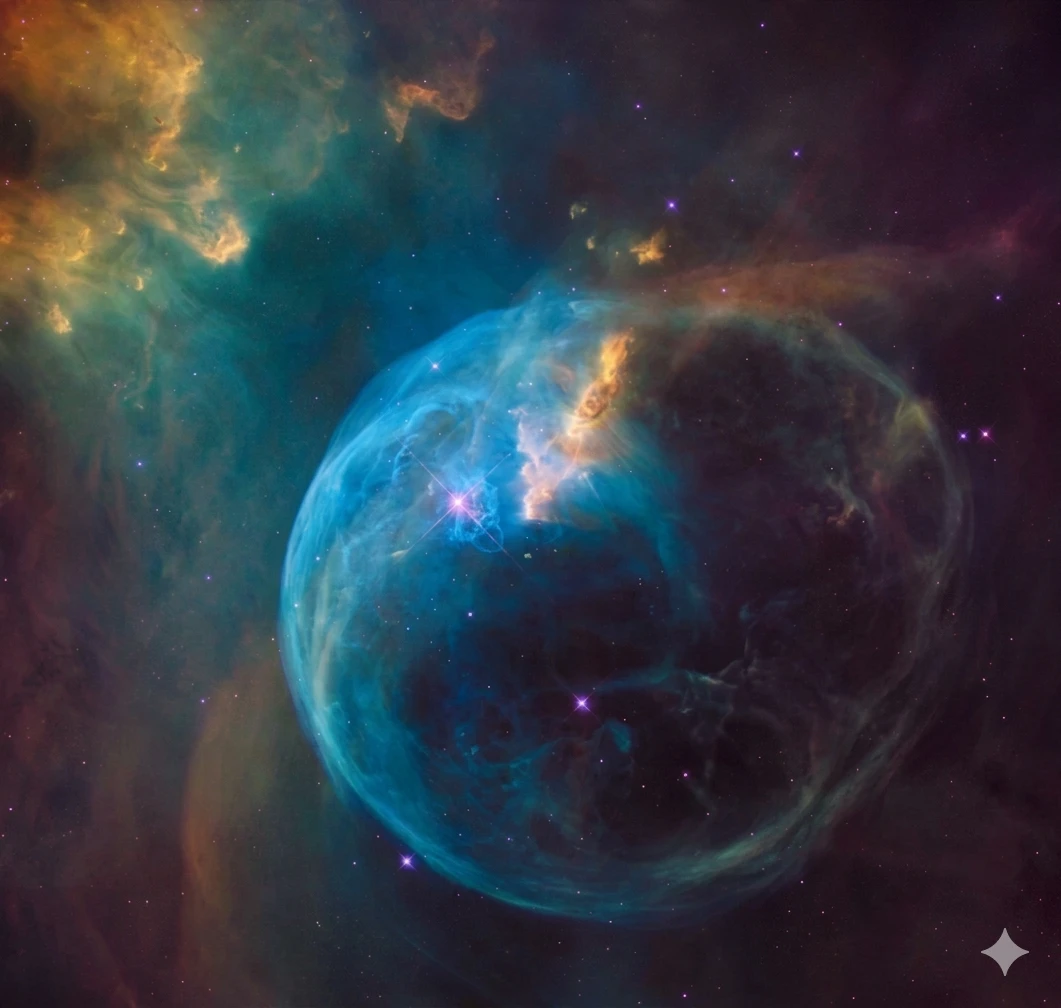
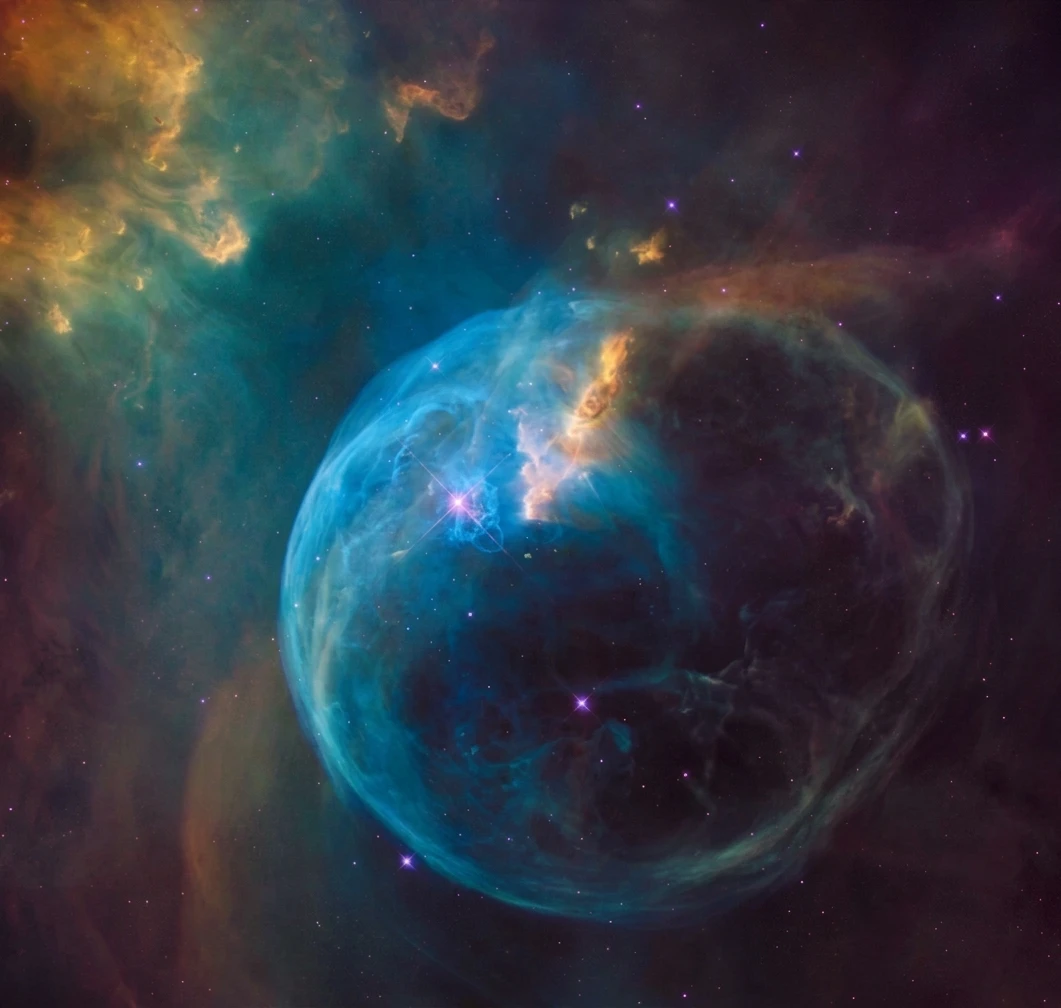
Choose the original download before any screenshot, crop, resize, or social-media recompression.
Drop a PNG, JPG, JPEG, or WebP file into the workspace above.
Check the full canvas and make sure the supported visible mark has not been cut off or covered.
Run the image pass so the browser can process the affected overlay pixels.
Inspect the original and result at full size, then save the PNG output.
Common web image formats are accepted, with PNG used for the processed download.
Best when you want to preserve lossless pixels and any supported transparency in the source workflow.
Accepted up to 20 MB. Existing JPEG compression artifacts remain part of the source image.
Accepted by modern browsers, including common lossy and lossless image exports.
The output retains the original width and height rather than cropping the marked corner.
Each screenshot or JPEG recompression changes pixel values around the overlay.
Scaling changes the mark geometry and makes a calibrated restoration less predictable.
Fine lines, text, and high-frequency texture deserve a full-size comparison.
Keep the untouched source for provenance and future editing needs.
This is a specialist overlay workflow rather than a general photo-retouching system.
No. Reading, supported-mark restoration, preview, and PNG export happen in the current browser.
Yes. The PNG output keeps the original canvas width and height.
Yes. JPG and JPEG files up to 20 MB are accepted, although existing compression remains in the source.
No. It targets supported visible Gemini logo and sparkle overlays.
For supported overlays, the workflow uses calibrated pixel relationships rather than asking a generative model to invent the corner.