Direct exports
Provide the clearest starting point because the watermark blend has not been altered by another application.
Prepare supported Nano Banana image exports for a clean handoff with a local browser workflow. Use the direct source image, compare the result at full size, and download a PNG.
Add multiple files and process them locally in sequence.
click, paste, or drop up to 20 files · PNG · JPG · WebP · MP4 · MOV · WebMNano Banana image workflows are often used for rapid edits, variations, product scenes, and creative composition. A visible Gemini-style mark in the corner can be distracting when the image is placed into a presentation, layout, or client review.
GeminiClear handles supported overlay patterns without trimming the image dimensions. The original export stays in the browser, and a before-and-after preview helps you inspect the affected corner before download.
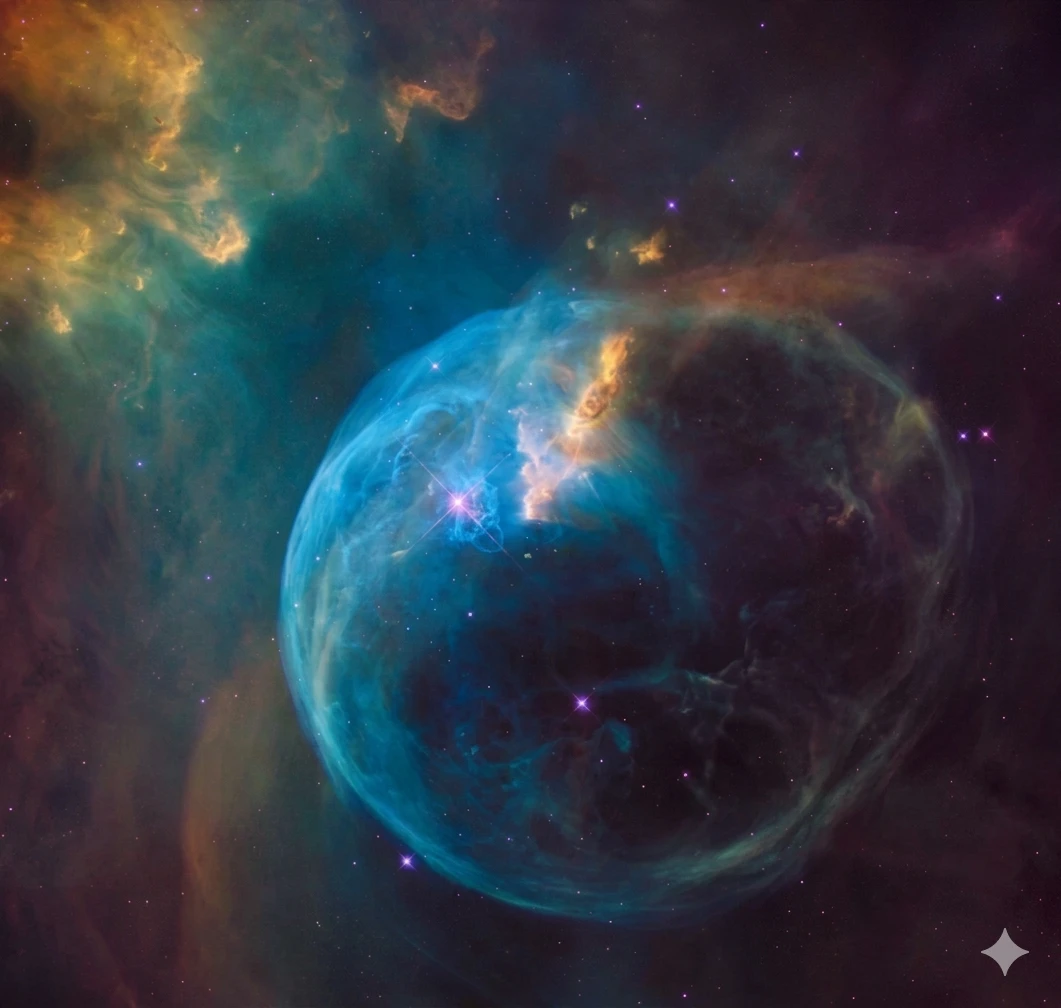
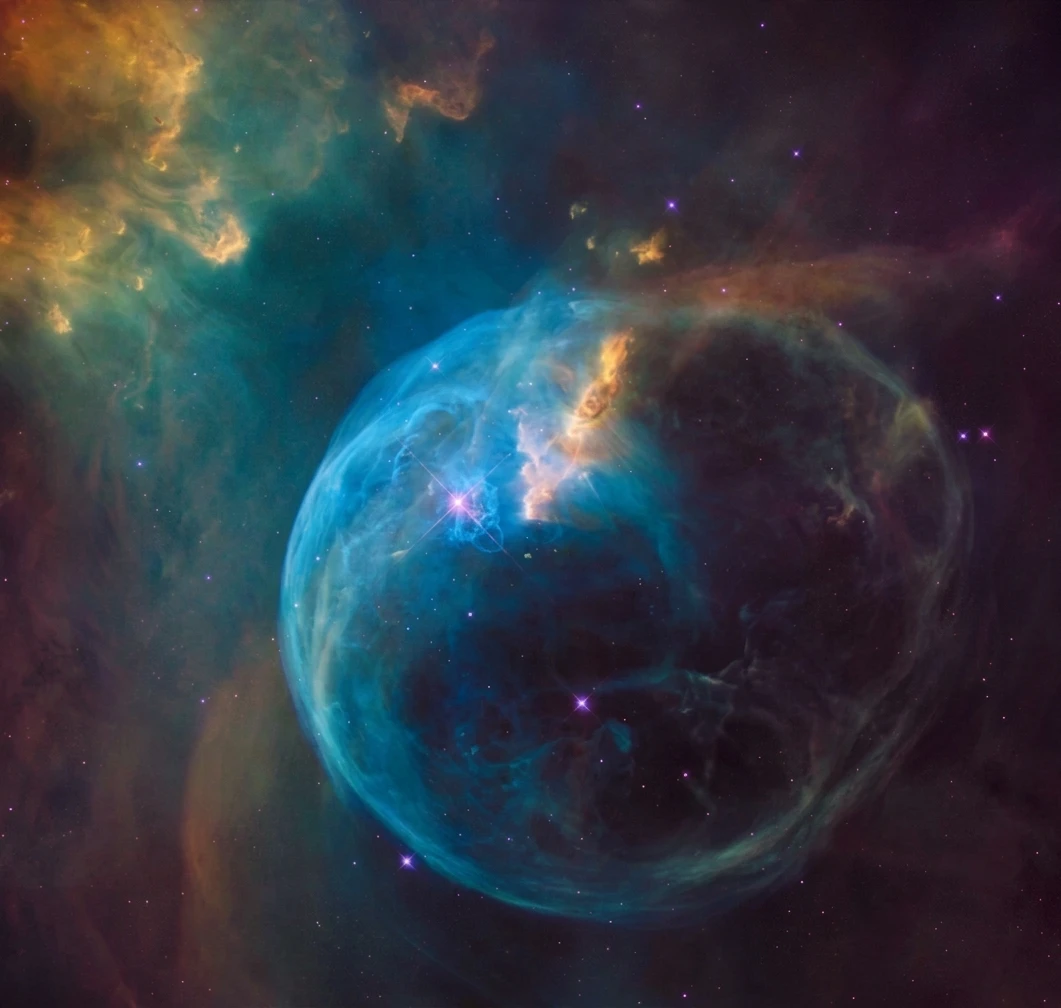
The direct export is preferable to a screenshot because it retains the original resolution and overlay pixels.
Download the result directly from the Google AI workflow that produced it.
Choose a PNG, JPG, JPEG, or WebP file up to 20 MB.
The browser processes the supported visible overlay area while keeping the canvas dimensions.
Zoom into textured edges near the mark, then download the PNG result.
The workflow supports common web image formats and produces a PNG result.
Provide the clearest starting point because the watermark blend has not been altered by another application.
Recommended when available for predictable pixel values and lossless storage.
Accepted formats, though prior lossy compression can reduce fine detail around the marked area.
Width and height remain unchanged by the supported restoration process.
Handle the direct image before placing it into a deck, mockup, or design canvas.
AI or conventional upscaling changes both the mark and nearby texture.
Smooth skies, walls, and product backdrops can reveal subtle compression or tonal differences.
Process only media you own or have authorization to edit and publish.
The tool is intended for supported visible Google AI overlay patterns in original image exports.
No. Select the image in the same main workspace; the image format opens the local image path automatically.
Yes. The supported workflow reads and processes it in the browser without a server media upload.
Use the direct PNG export when available. JPG and WebP are also accepted up to 20 MB.
No. The processed PNG keeps the original canvas width and height.
No. It is designed for supported visible Gemini-style overlay patterns, not arbitrary logo removal.